

Add team members
Skip this section if the team member has already joined your YCloud organization.
Step 1: Invite a team member
- Go to Settings > Users and teams > Users.
- Click Invite user.
- Enter the user’s email address, assign a role and any required permissions, then click Add.
- YCloud sends an activation email to the invited user.

Open Settings > Users and teams, then select Invite user.

Enter the email address and select the role before sending the invitation. This example has not been submitted.
Step 2: Activate the account
The invited user opens the activation email and clicks Activate account. They do not need to register a separate account on the YCloud website.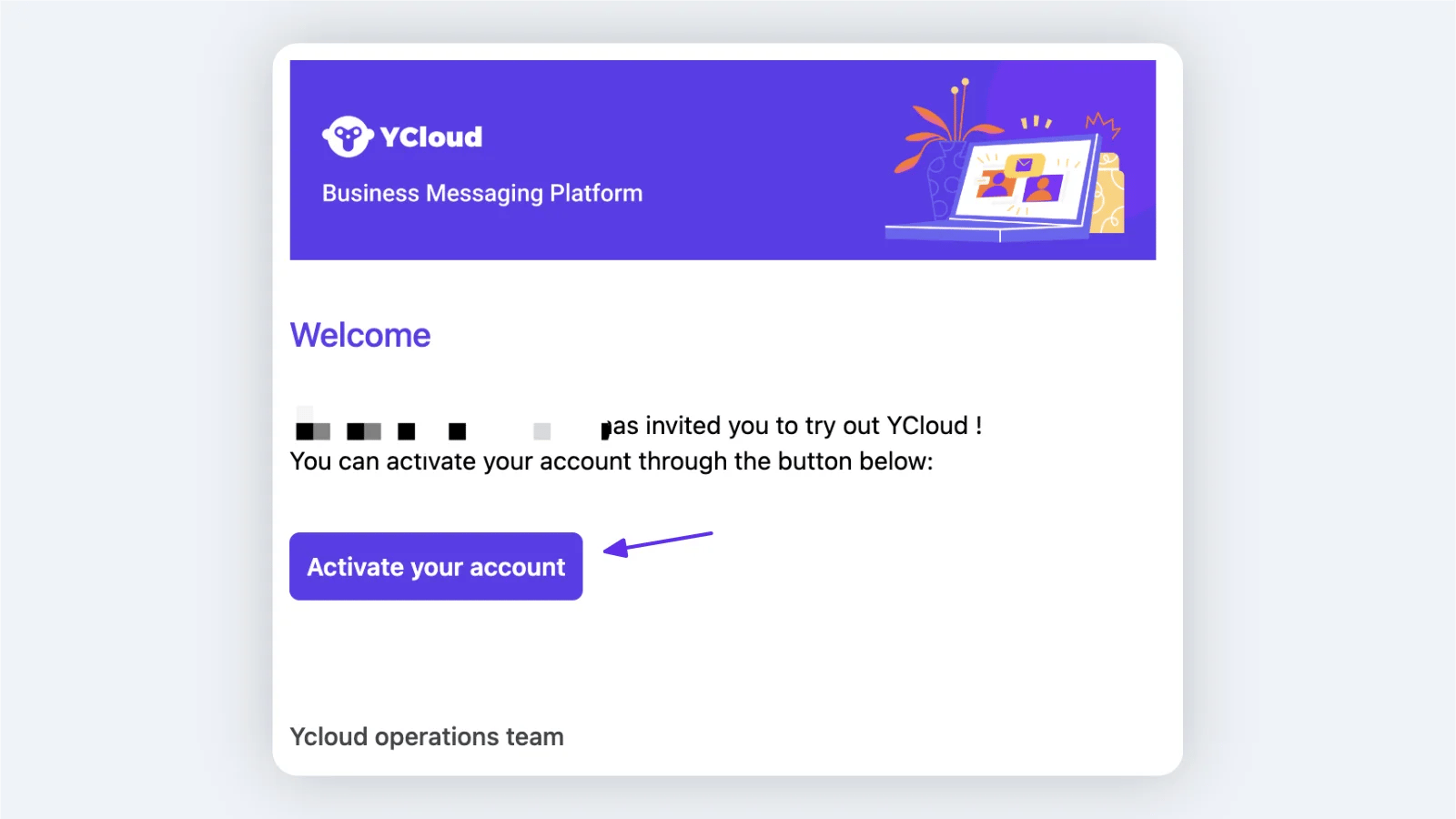
Configure Calling for a business number
Go to WhatsApp accounts, find the business number, click its settings icon, and open the Calling section.
Open the business number settings and select Calling > Authority.
Authority
Open Calling > Authority to manage the Calling feature for the selected number.- Calling feature: enables both inbound and outbound Calling for the number.
- Inbound calling: when enabled, customers can call the business number.
- Call icon visibility: shows the call icon in WhatsApp conversations and the business profile. If hidden, customers may still call from a message that contains a call button.
- Outbound access: select the agents who can place outbound calls with this business number in the YCloud console.
Assignment
Open Calling > Assignment to add eligible agents or teams and configure how inbound calls are distributed. You can enable Prioritize assigning calls to the customer’s Inbox assignee when available. The Inbox assignee must also be included in the Calling agent list; otherwise, the call follows the default rule. Choose one default assignment rule:- Assign calls to the available online agents randomly.
- Prioritize assigning calls to the available online agents with the lowest call volumes for the day.

Review eligible agents and teams, then choose the default assignment rule.
Recording and transcription
Admins configure whether new calls on each business number are recorded, transcribed, or both. They also set the announcement language and purpose shown to call participants. See Recording and Transcription for setup instructions.Calling tags
Supervisors can manage tags used to classify call records. Go to Settings > Calling > Calling tags to add, edit, search, or remove tags.
Go to Settings > Calling > Calling tags to manage the tags used in call records.
Calling logs
Open Calling > Calling logs to review historical calls. Use the filters to locate records and select a record to inspect its details.
Use the filters to find calls. This demonstration search has no matching records.