

Calling workspace
Open Calling from the YCloud console navigation.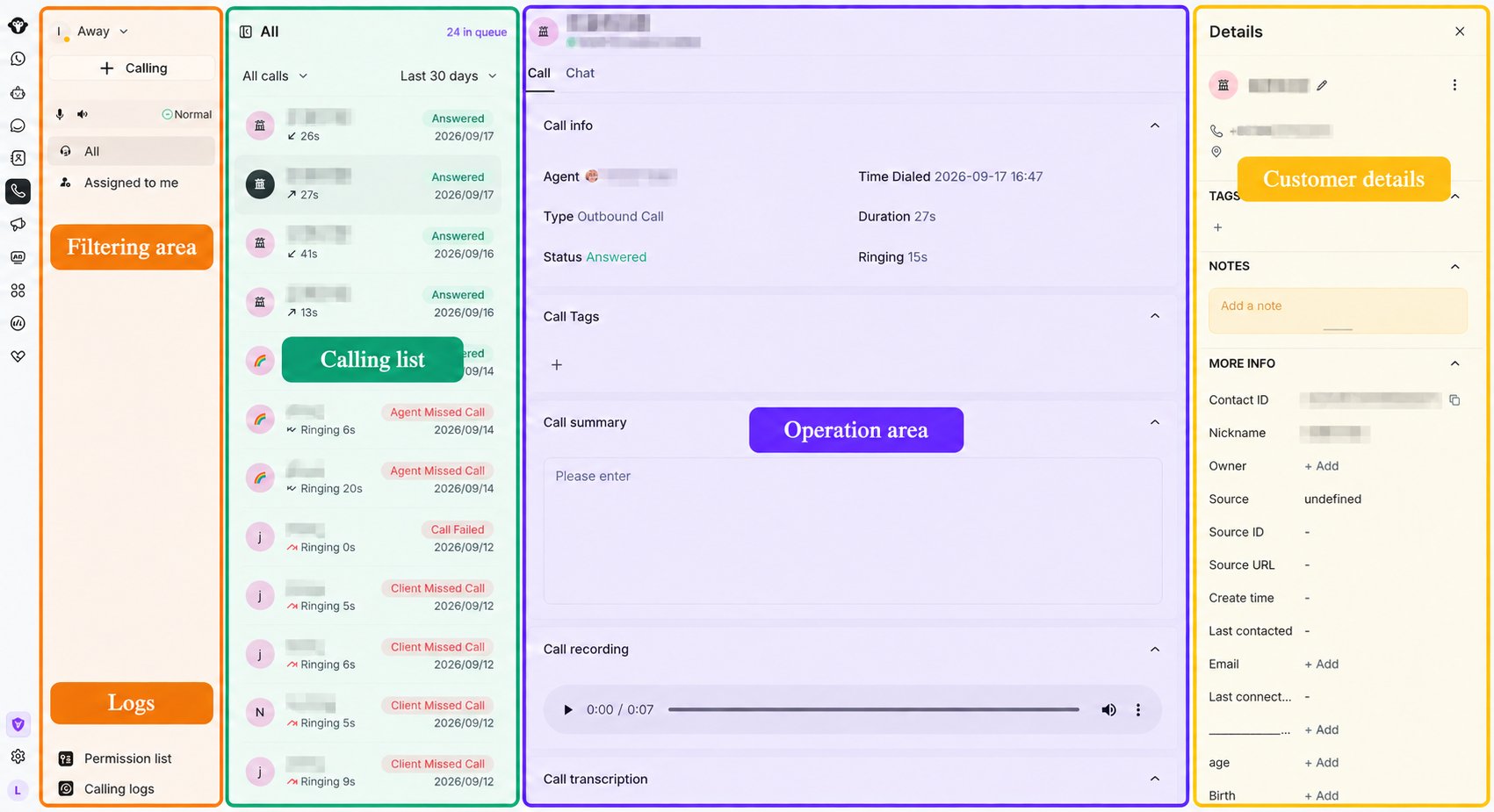
The Calling workspace includes filters, the call list, call details and controls, and customer details.
Status and controls
- Agent status: switch between Away and Available. Calls are not automatically assigned while you are Away.
- Browser authorization: if microphone or audio access has not been granted, authorize the browser before answering calls.
- Calling: use the + Calling button to start an outbound call.
- Audio status: check the microphone, speaker, and connection status before handling calls.
- Assignment filters: switch between All and Assigned to me.
- Permission list: view customers who have granted outbound calling permission.
- Calling logs: open historical call records.
Queue and call list
- The queue count shows how many calls are waiting.
- Use the call-status filter, such as All calls, to narrow the list.
- Use the time filter, such as Today, Yesterday, or Last 30 days.
- Select a call to open its details.
Call details and follow-up
The detail area can show the assigned agent, direction, status, time, tags, and notes for the selected call. During or after a call, agents can:- Add call tags.
- Add or edit the call summary.
- Update the customer’s contact information.
- Switch to the Inbox chat and continue the conversation by message.