

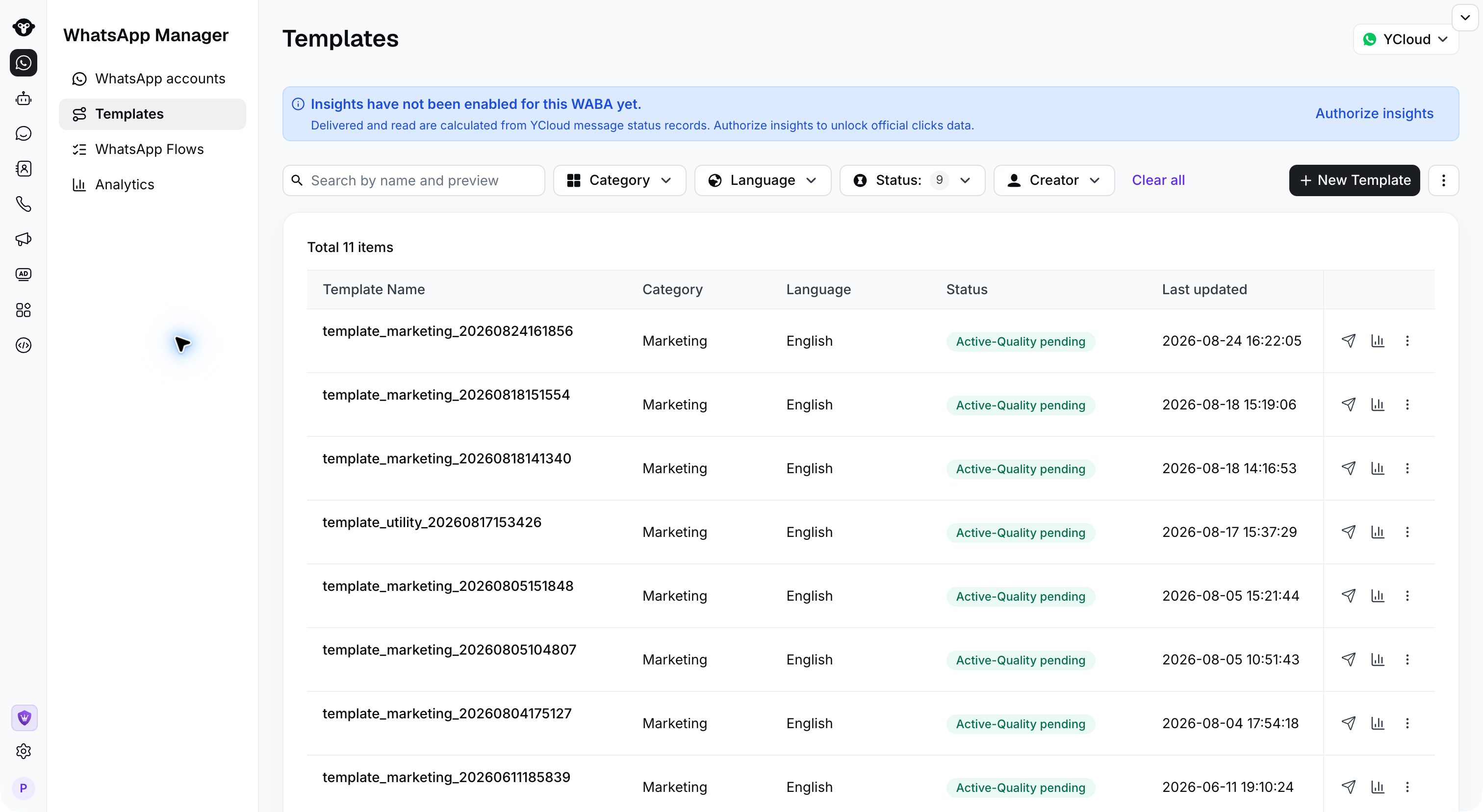
- Click the menu [WhatsApp Manager] > [Templates] and then the button [New Template] > [Marketing]
- In the pop-up window that appears, select the [AI build it for me] option to enter the AI-generated marketing template interface

Choose AI build it for me to open the marketing template generator.
- Select the template scenario you need to generate, such as promotion event, new user welcome message, abandoned cart reminder, and custom templates. Also, choose your business field and fill in the corresponding configuration content, such as template tone, language, and number of generations, etc. After completing the configuration, click the [Generate] button, and you can preview the generated marketing template in the right preview interface after a short wait

Configure your scenario and select Generate to preview a draft.
- Choose a marketing template you’re satisfied with, move your mouse to the corresponding template and click “Use this template” to enter the final refinement interface of the template. Here, you can add template language, fine-tune the template content, or add necessary buttons and other content if you want. The final presentation effect of the template will be displayed synchronously on the right side of the screen

Refine the generated content and review the customer preview before submitting.
- If you want to translate the modified template into multiple target languages, click the AI Translation button and select the target languages you need in the pop-up window. Then click the “Submit” button to wait for AI to translate it

Choose target languages, then select Submit in this dialog to generate translations.
- After AI completes the translation, new tabs for the corresponding language template will be added on the right side of the original language template, which you can click to view

Select a language tab to review its translated content. This draft has not been submitted for approval.
- Finally, click the [Submit] button at the end of the page to submit these templates