

- System attributes: Automatically generated or updated by YCloud, such as nickname, phone number, source, create time, and last contacted time.
- Custom attributes: Created by team members based on business needs, such as customer level, purchase intent, store location, or business type.
Common System Attributes
Common contact attributes include:| Attribute | Description |
|---|---|
| Nickname | The contact’s original nickname, usually synced from WhatsApp profile information. |
| Phone number | The contact’s primary phone number, usually synced from WhatsApp or entered manually. |
| The contact’s email address. | |
| Country / Region | The country or region associated with the contact, usually identified based on the phone number or profile information. |
| Source | The contact source, used to indicate whether the contact came from a message, link, import, API, ad, or another entry point. |
| Source ID | The unique identifier of the contact source, usually used to record the original ad source or channel source. |
| Source URL | The original URL associated with the contact source, such as an ad, campaign, or entry link. |
| Tag | Tags assigned to the contact for classification, filtering, and follow-up operations. |
| Owner | The email address of the team member responsible for managing the contact. |
| Create time | The time when the contact was first created in the system. |
| Last contacted | The most recent time when an interaction occurred with this contact. |
| Last connected number | The WhatsApp Business number or channel number most recently used to communicate with this contact. |
Attributes marked as System are system attributes. They are usually generated or updated automatically by YCloud based on contact information, source, conversations, imports, or integration data.
Source
Source, also known as Contact source, is one of the most commonly used system attributes for contacts. It indicates where the contact first entered YCloud, and can be used to identify acquisition channels, analyze ad performance, or filter contacts from different entry points. Source may include the following enum values:| Source | Description |
|---|---|
| Inbound message | The contact connected with your WhatsApp number by sending an inbound message. |
| Link / QR Code | The contact connected with your WhatsApp number through a link or QR code. |
| Manually added | The contact was manually added by a team member. |
| File import | The contact was added through file import. |
| Shopify | The contact was synced from your Shopify store to YCloud through the Shopify integration. |
| API added | The contact connected with your WhatsApp number through the YCloud API. |
| AD | The contact connected with your WhatsApp number through Meta Click-to-WhatsApp ad traffic. Learn more about Meta CTWA Ads. |
| TikTok AD | The contact connected with your WhatsApp number through TikTok Messaging Ads. Learn more about TikTok Messaging Ads. |
| Post | The contact connected with your WhatsApp number through Facebook posts or similar entry points. |
| Calling | The contact connected with your WhatsApp number through WhatsApp Calling. |
| WhatsApp Business App | The contact connected with your WhatsApp number through WhatsApp Business App. |
| Unknown | The system cannot identify how the contact connected with your WhatsApp number, or the source was not recorded in historical data. |
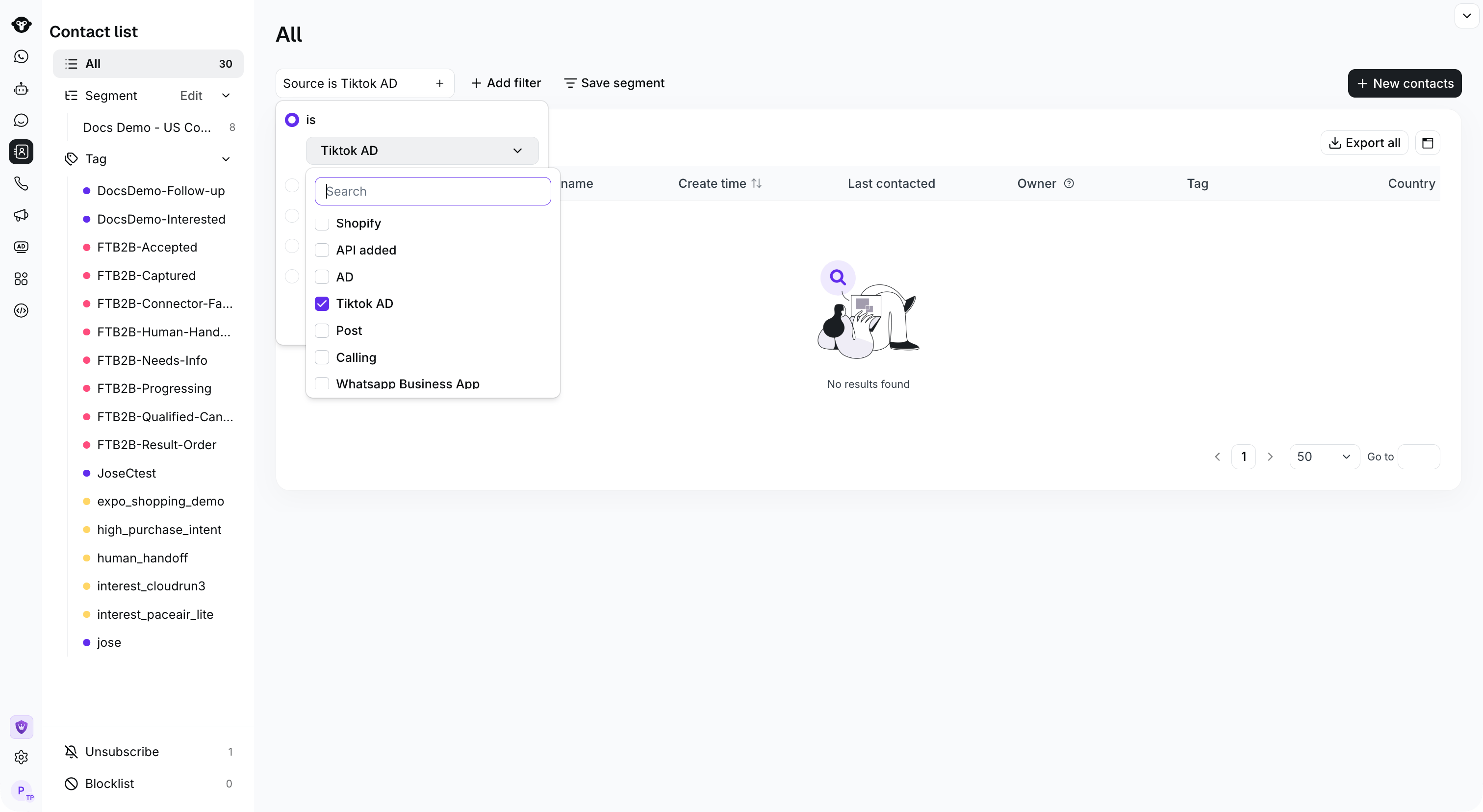
Filter contacts by Source. This example selects Tiktok AD; the demo account has no matching contacts.
Add a Custom Attribute
If system attributes do not meet your business management needs, you can add custom attributes.- Log in to your YCloud account.
- Go to Settings > Contact > Attributes.
- Click Add Attribute.
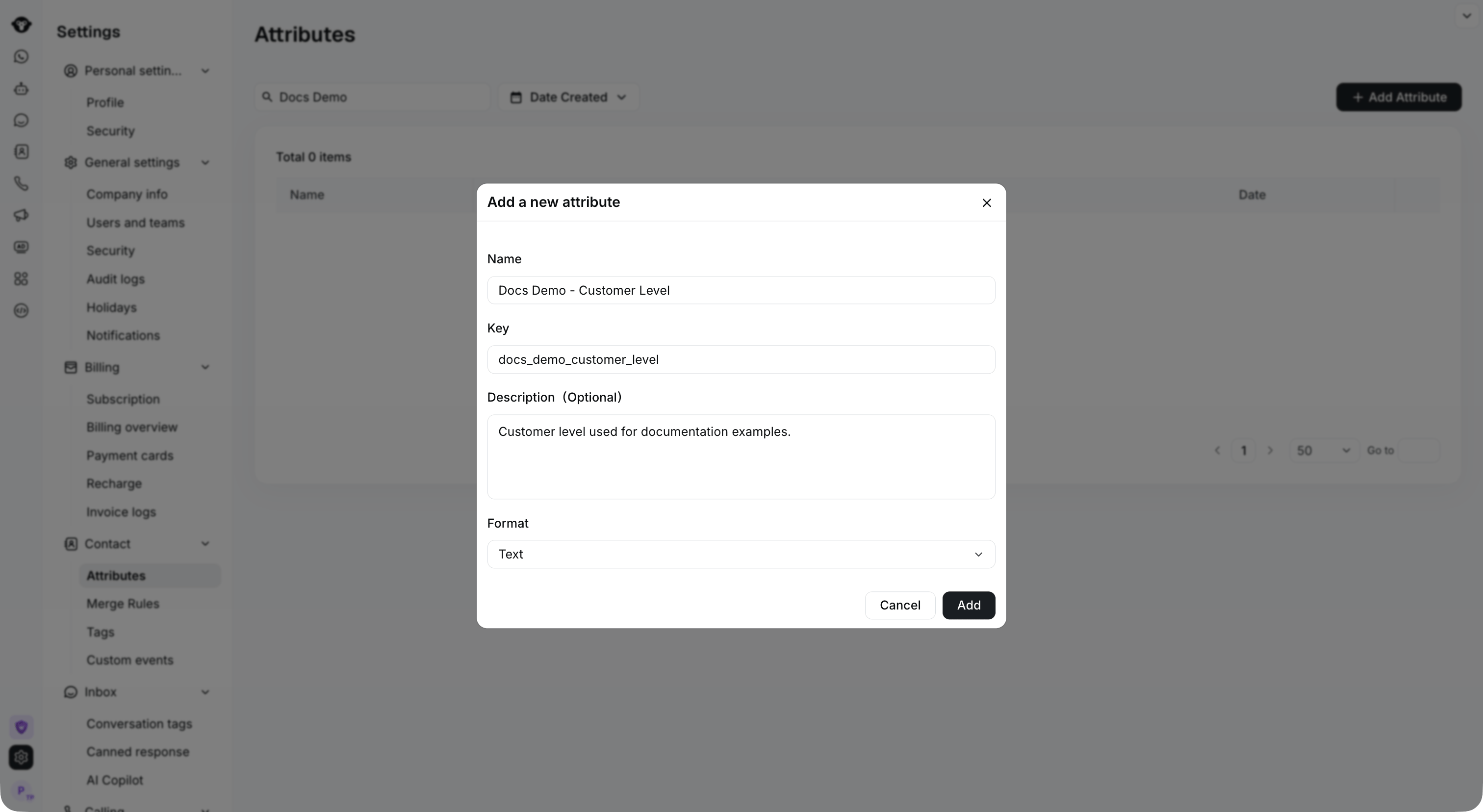
Define the attribute name, unique key, description, and format, then select Add.
- Enter the attribute Name and a unique Key. Optionally add a Description, then select a Format.
- Click Add to finish.
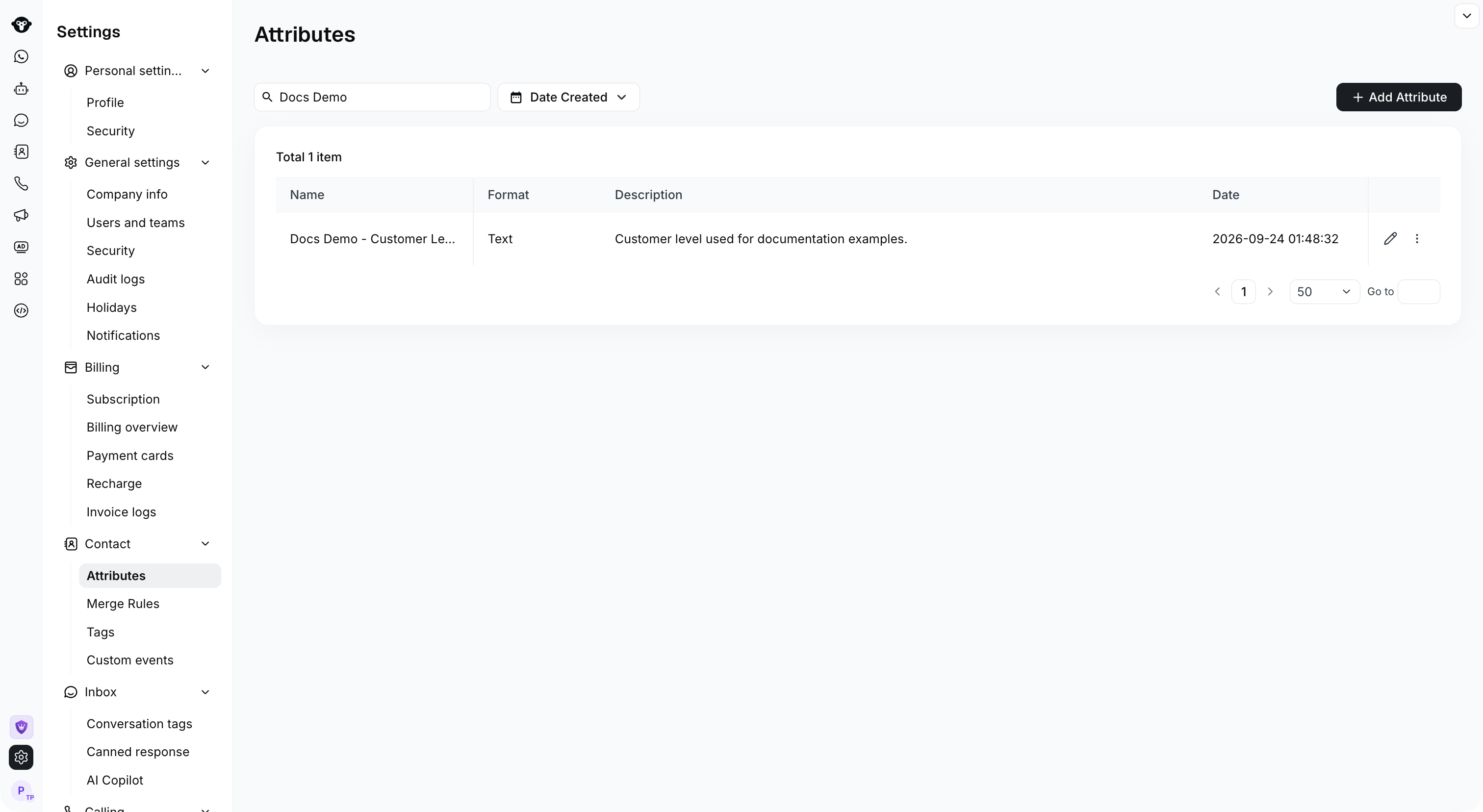
The saved attribute appears in the list with its format and description.
Edit or Delete an Attribute
After an attribute is added successfully, you can view it on the Settings > Contact > Attributes page. You can also edit or delete it as needed.
Use the pencil icon to edit an attribute, or open its actions menu to find Delete.