


The highlighted badges show OBA placement in Meta's example. They do not establish the status of your own number.
Check the current OBA requirements
Meta’s current Platform OBA documentation lists these prerequisites:- The business complies with the WhatsApp Business Messaging Policy.
- The business has used the WhatsApp Business Platform for at least 30 days.
- The business portfolio owning the number has completed business verification.
- Two-step verification is enabled for the business phone number.
- The number’s display name is approved.
Older guides emphasize brand notability and press coverage. Meta’s current Platform OBA page lists the prerequisites above without that older checklist. If your application asks for brand information or other evidence, provide it truthfully. The absence of a requirement on the documentation page is not a guarantee of approval or proof that Meta will never request additional information.
Apply in WhatsApp Manager
Before opening the request, prepare the intended phone number, WABA ID, approved display name, legal business information, and official website.1
Choose the number
Open WhatsApp Manager, go to Overview, and select the business phone number. Confirm the WABA and number before changing anything.
2
Check the prerequisites
Confirm business verification, approved display name, and the Platform-use requirement. Enable Two-step verification for the number if needed. The registration PIN is different from an SMS verification code and from your Facebook login’s two-factor authentication.
3
Open the OBA request
Go to the number’s Profile. In Official business account, select Submit Request when available.
4
Provide the requested information
Complete the current form using the same business and brand identity as the number. Supply any additional evidence requested by Meta. Do not invent coverage, use another brand’s evidence, or submit inconsistent business names.
5
Track the request
Review the status for this number in WhatsApp Manager. Keep the submission date and any decision or follow-up request.
If you cannot submit
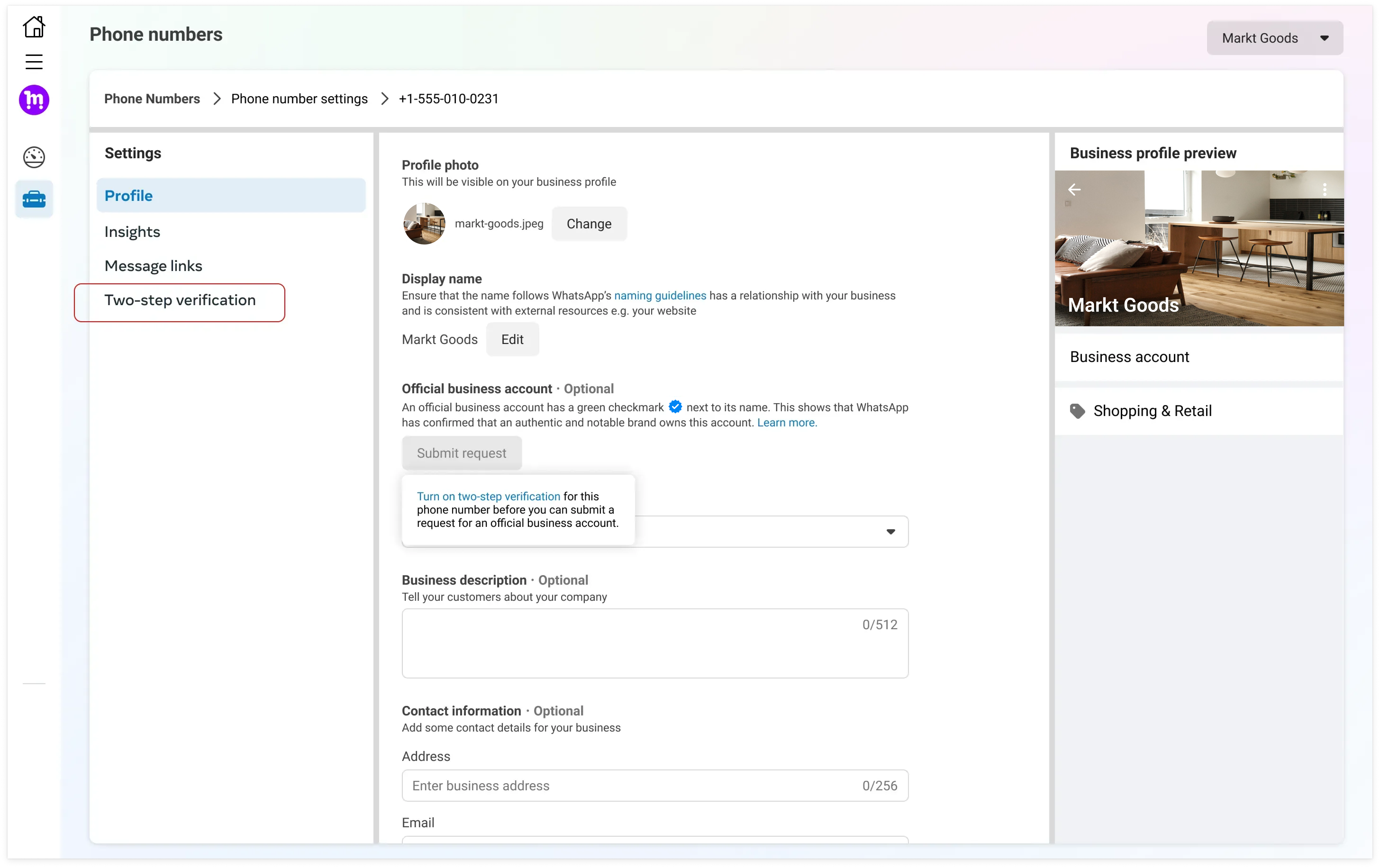
Meta illustrates a disabled request because two-step verification is missing. Resolve the prerequisite; this is not a successful submission.
After approval or rejection
If approved: verify the status on the intended number and keep the profile consistent with the approved identity. Assess any future display-name or ownership change before applying it; do not assume official status transfers with a new brand. If rejected: Meta currently allows a new request after 30 days. Review the decision and correct the missing or inconsistent information. Repeated identical submissions are not a substitute for addressing the reason. An OBA rejection does not by itself mean the account is banned. The ordinary business profile can still be maintained, and messaging availability must be checked separately.What the badge does not do
OBA does not replace consent, approve templates, remove messaging limits, guarantee delivery, or exempt your business from policy enforcement. It also does not automatically grant a badge to the other numbers in the same WABA. If your issue is failed sending or an account restriction, use Quality and delivery controls or Account restrictions and appeals, not the OBA application flow.Frequently asked questions
A provider offers a guaranteed paid blue badge. Is that an OBA approval?
A provider offers a guaranteed paid blue badge. Is that an OBA approval?
Do not treat a payment or provider promise as a Meta approval. Ask which program is being offered: Platform OBA or a separate Meta Verified subscription. For OBA, check the actual number’s status in WhatsApp Manager. A provider’s assistance fee, if any, does not override Meta’s review.
Do all numbers in my WABA receive a badge when one is approved?
Do all numbers in my WABA receive a badge when one is approved?
No. Check and, where eligible, apply for each intended business phone number. A WABA containing an OBA number is not itself a badge that automatically covers every sender.
My OBA request was rejected. Should I stop messaging customers?
My OBA request was rejected. Should I stop messaging customers?
An OBA rejection and a messaging restriction are different decisions. Read the number and account status separately. Continue only with permitted messaging on an unrestricted connection; use the OBA reapplication guidance above for the badge decision, not the account-appeal route unless Meta also imposed a restriction.