

When coexistence fits
Consider coexistence when your team already uses the WhatsApp Business app and wants to add YCloud Inbox, automation, or API integrations without immediately moving all work away from the app.What to expect from synchronization
Supported one-to-one messages can be mirrored between the app and the platform. History sharing is a separate onboarding choice; it is not a guarantee that every historical message, media file, or app feature will appear in YCloud. Meta’s coexistence documentation distinguishes one-to-one chats from app-only features. Existing app group chats are not synchronized as API group conversations. App calling is not the same integration as WhatsApp Calling. Review Meta’s current feature comparison before depending on broadcasts, linked devices, disappearing messages, or other app features.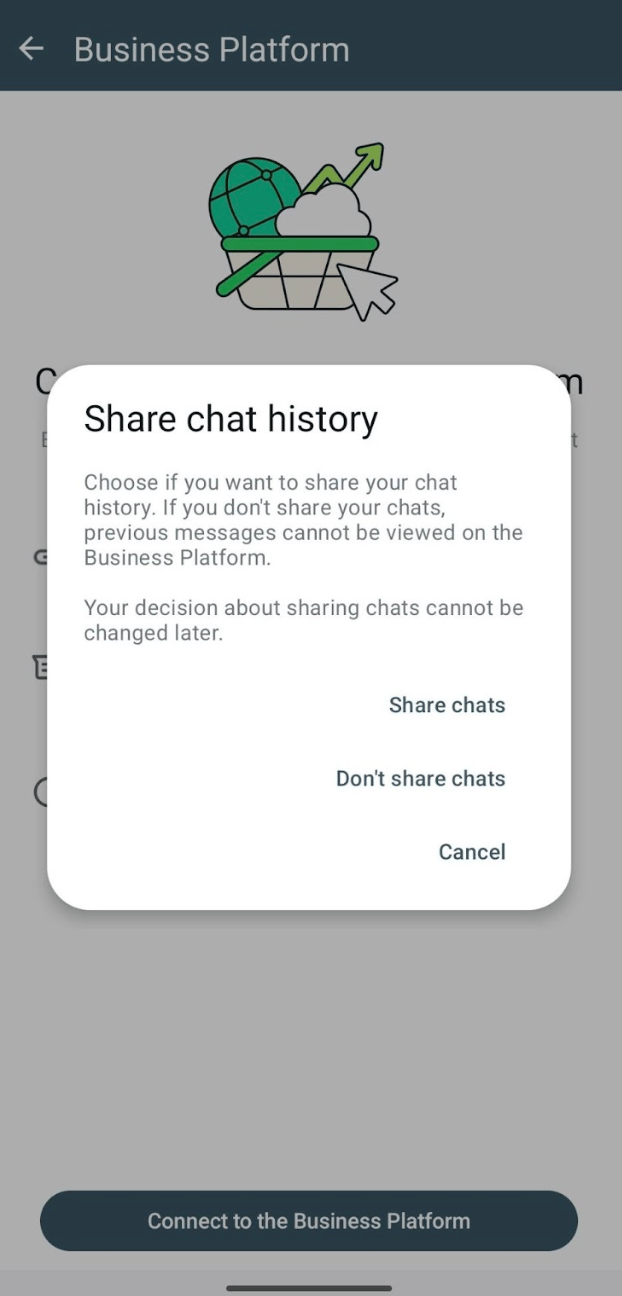
History sharing is an explicit onboarding choice. This Meta example illustrates the choice, not a completed YCloud synchronization.
API messaging rules still apply
Using the app does not remove the API’s template, consent, pricing, or service-window requirements. An app-sent business message does not open or extend the API customer service window. Historical chats imported during onboarding also do not create an API window. A customer message received after API onboarding opens the window normally. See Service messages for the complete window rules and WhatsApp pricing for API message charges. Do not assume a coexistence number has the same throughput or capabilities as a standard Cloud API number. Confirm its current limits before scheduling a large campaign.Prepare your team
Before connecting:- Confirm that the number uses the WhatsApp Business app, not the personal WhatsApp app.
- Keep access to the primary phone and the Meta business assets used for onboarding.
- Review history-sharing choices and the impact on linked devices.
- Decide who answers in the app and who answers in YCloud.
- Check how automation will pause when a person takes over.
- Test customer messages, app replies, API replies, and delivery reporting.
Connect through YCloud
Follow Connect a WhatsApp Business app number for the YCloud onboarding procedure. Use the current prompts shown in the app and onboarding flow. Do not delete the existing app account as a routine coexistence step. If the flow does not offer the expected connection option, stop and confirm eligibility with support before changing the number’s registration.The connection sequence at a glance
- In YCloud, select Create channels and choose WhatsApp Business APP Coexistence.
- Choose the WhatsApp Business App Number route and enter the existing app number.
- Use the Business app on the primary phone to complete the QR-code connection prompts.
- Decide whether to share the available chat history. This is separate from authorizing future API messaging.
- Complete the Meta business-authorization prompts, check the business details, and finish.
- Let YCloud return to the account list. If history synchronization was authorized, keep the Business app open and wait for synchronization to complete.
Understand the operational trade-offs
Acceptance test before handing over to the team
Have a test customer message the connected number. Confirm the inbound message appears in the expected tools after synchronization. Reply once from the app and once through YCloud, checking what mirrors and whether automation stays silent during a human reply. Then test an approved template, a media message, and a conversation whose service window has expired. Keep the test small and document any unsupported behavior before launching campaigns. The YCloud coexistence guide is the source for the console sequence and YCloud synchronization behavior.Before disconnecting
Review which workflows depend on the API connection, how your team will handle messages afterward, and what records you need to retain. Disconnecting is an operational change; it should not be used as a routine troubleshooting retry.Frequently asked questions
A recent app chat is visible after onboarding. Why can the API still require a template?
A recent app chat is visible after onboarding. Why can the API still require a template?
Visible history is not proof of an open API service window. Meta documents that a message sent before the business is onboarded to Cloud API does not establish that window. Check for a qualifying new customer message after onboarding; otherwise use a suitable approved template. An app-originated reply also does not extend the API window.
Will my existing app groups and every linked-device message appear in Inbox?
Will my existing app groups and every linked-device message appear in Inbox?
Do not expect that. App groups are not imported as API or Inbox groups, and supported synchronization depends on the message, client, and connection. Test the exact devices your team uses and review unsupported-message behavior. A partial history view is not evidence that all app data migrated.
Should I delete the Business app account if onboarding fails?
Should I delete the Business app account if onboarding fails?
Not as a coexistence troubleshooting step. Deletion defeats the aim of retaining the app account and can destroy history. Check the supported app version, eligibility, ownership, and actual onboarding error first; contact support with redacted context before changing the account.