

Inbox interface
Get to know the Inbox workspace quickly by its different areas.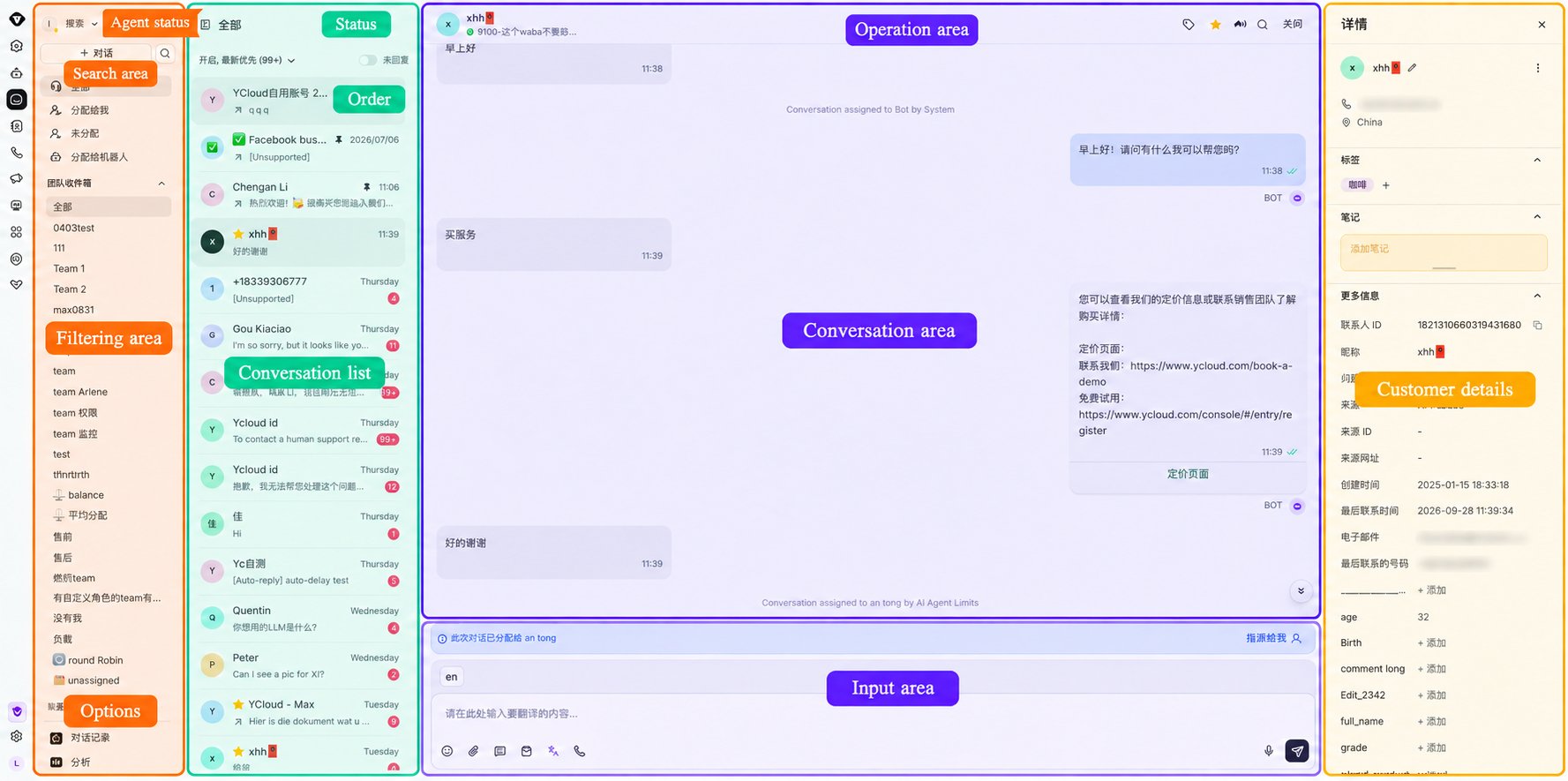
Inbox search and filtering
Enter keywords or set specific conditions to quickly find the conversation or message you need.- Agent status: Set your current status to Away or Available. When your status is Away, conversations are not automatically assigned to you unless special assignment rules are configured.
- Search area: Use basic search and advanced filtering to quickly find a target customer conversation.
- Filter area: Filter Inbox conversations by assignment status, tags, and custom filters.
- Options: Access data analytics and Inbox settings.
Conversation list
View all conversations and quickly switch to the conversation you want to review or continue. You can filter the list by conversation status and sort conversations in different orders.Chat area
Use the chat area for real-time communication with customers.- Conversation area: Displays the conversation history.
- Message input area: Enter text, emojis, files, templates, and other message content.
- Operation area: Perform actions such as starring or transferring a conversation.
Customer details
View information about the customer associated with the current conversation, including their name, avatar, and contact information. You can also add tags and edit contact attributes.Inbox search and filtering area
Use search and filters to quickly find the conversation or message you need.Basic search
Use Contact search to find a customer by phone number, nickname, username, remark name, or contact ID. The search menu also includes Message search. To search for a contact, click the search icon beside Conversation, select Contact, and enter a name or phone number.Quick filters
Filter Inbox conversations by assignment status, user tags, or custom filters. Each category supports only one selection at a time.Custom filters
Combine one or more conditions to create a conversation filter and save it as a submenu. Multiple selections are supported within individual conditions. Click the plus icon in the custom filter area to open advanced filtering. Select a condition and configure its rules. To add another condition, click Add filter. To delete a condition, hover over it and click the X icon.Bulk transfer or close conversations
Inbox supports transferring or closing multiple conversations at once.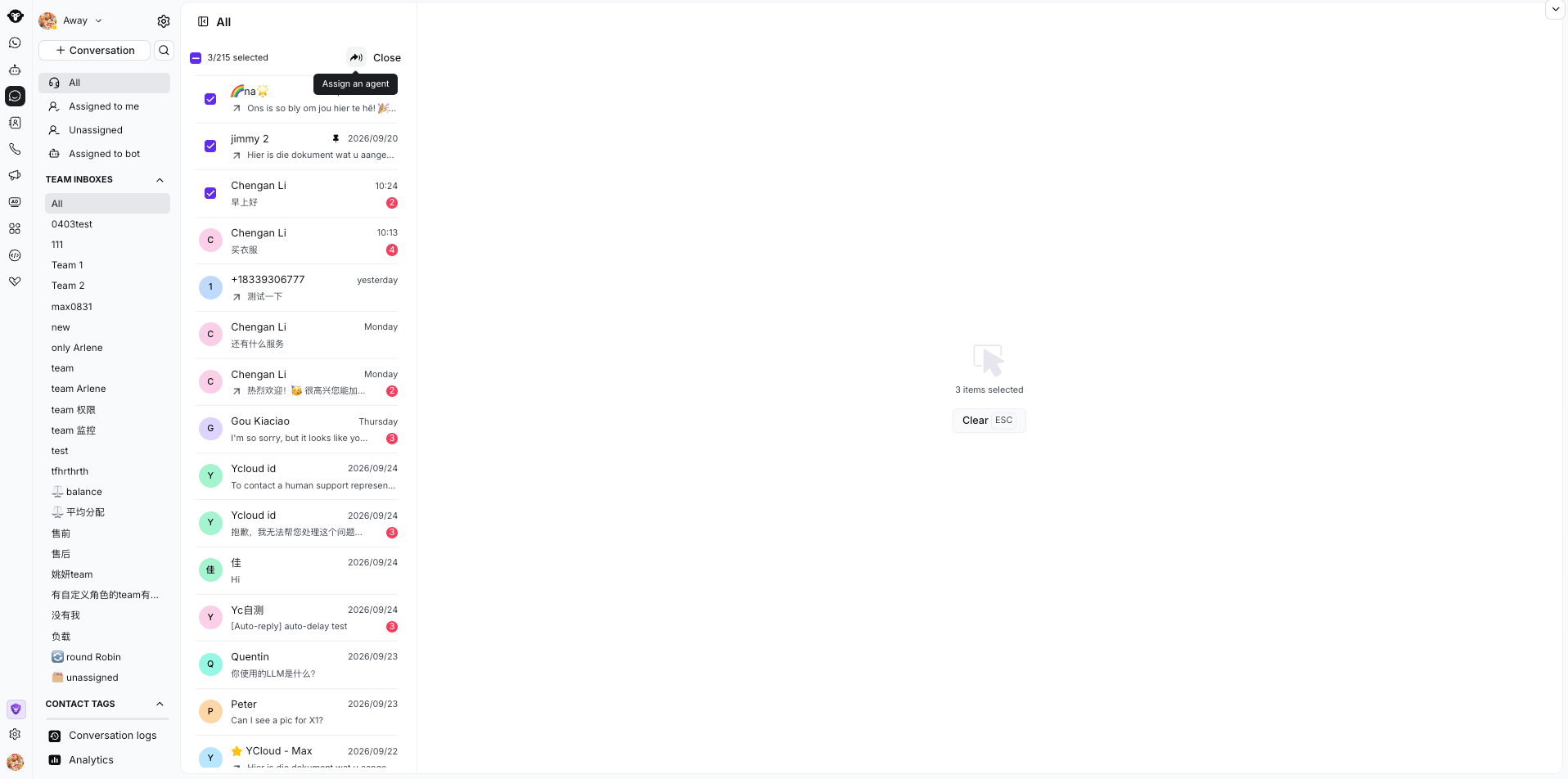
Select multiple conversations to transfer or close them in one action.
- Hover over a conversation to display its checkbox.
- Select the conversations you want to process. The number of selected conversations appears on the right side of the page.
- Complete one of the following actions:
- To transfer the conversations, click the transfer button in the upper-right corner and select an agent or the Unassigned group.
- To close the conversations, click the close button in the upper-right corner.
- Confirm the action in the dialog.
Inbox chat area
Conversation area
In Inbox, a conversation is the entire communication history between your team and a specific contact. A message is one item sent or received within that conversation.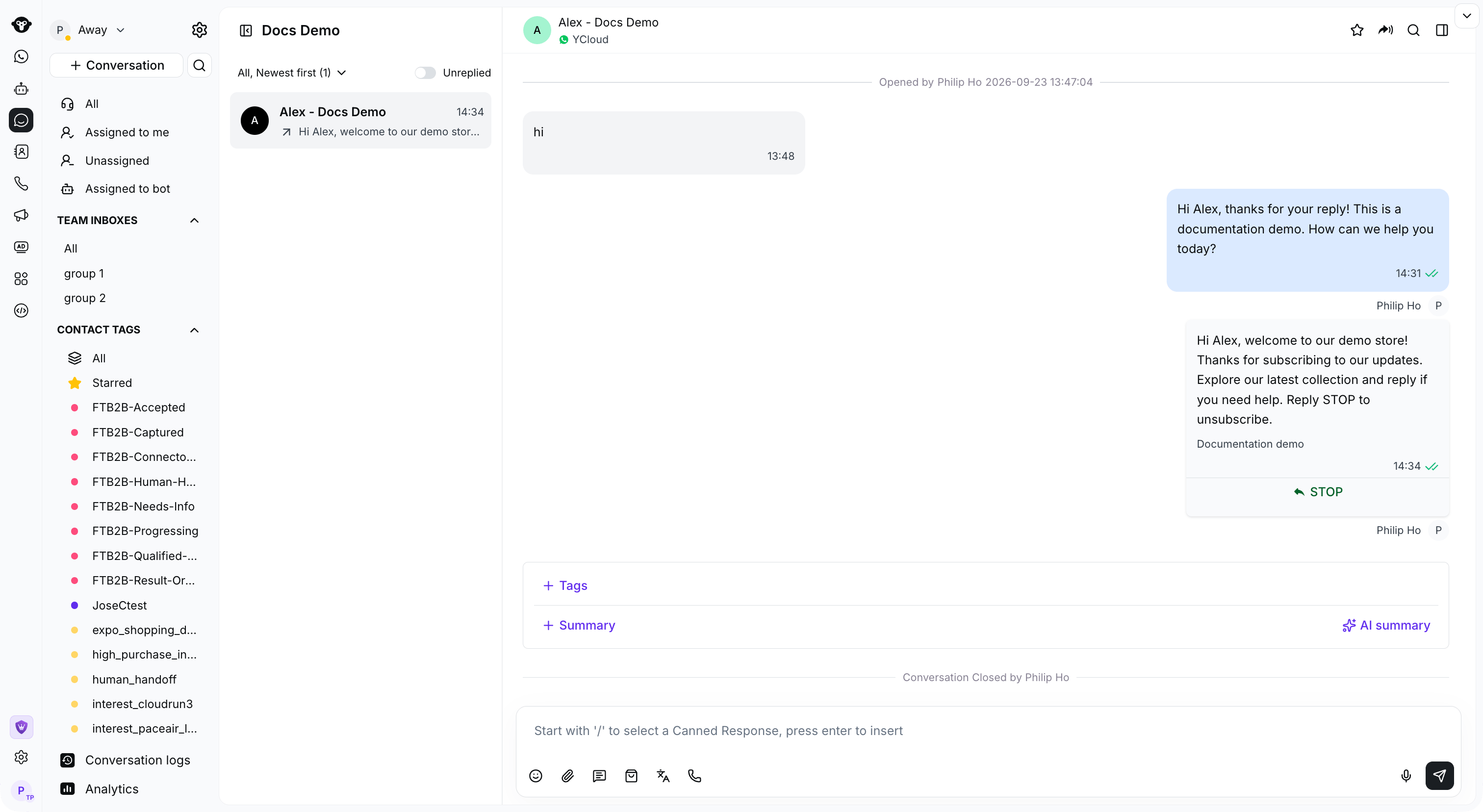
The Inbox workspace keeps navigation, the conversation list, and the message composer together.
Conversation status
A conversation can be Open or Closed. The conversation timeline can show the following events:- The conversation was opened by a customer or agent.
- Agent A transferred the conversation to Agent B.
- An agent starred or unstarred the conversation.
- An agent closed the conversation.
- The conversation was closed automatically because the customer did not reply again within 24 hours.
Message status
Message actions
Hover over a message to display its available action icons, then select the action you need.- Reply: Quote the original WhatsApp message in your new message so recipients can clearly see what you are replying to.
- React: Respond to a message with an emoji reaction such as like, love, surprise, or sadness without sending a text reply.
Sender
Use the avatar next to a message to identify whether it was sent by an Agent, AI Agent, API, or Inbox automation.Message input area
Transfer a conversation to yourself
When a conversation is assigned to someone else or is unassigned, click Assign to me to transfer it to yourself before replying.Add message content
Use the icons in the chat area to:- Add an emoji.
- Add an attachment.
- Send a Shop product.
- Enable input translation.
- Start a call or ask the customer to call in.

Use the toolbar below the message box to add content or open calling options.
Add a canned response
Type/ and select a canned response to add it to the message box. For details, see Canned response.
Send a message
Press Enter or click Send to send the message.User information and operations area
Supported basic actions
Conversation tags
Add tags to the current or a historical conversation. For details, see Conversation tags.Star a customer
Click the star icon to mark a high-value customer as a favorite. The customer is then listed under Starred in the left sidebar.Transfer a conversation
Click Transfer next to the customer name at the top of the conversation area. Select an assignee from the dropdown list, or enter a name to search for an agent quickly.Close a conversation
Click Close next to the customer name at the top of the conversation area to end the conversation. Its status changes to Closed.Customer details
Click the expand button or the customer avatar to open the customer details panel. From this panel, you can:- Change the customer remark name: Click the edit icon next to the customer name.
- Change customer assignment: Open the assignment dropdown and select an agent or team.
- Add tags: Find the Tags section, click the plus icon, and select an existing tag.
- Edit attributes: Click the value beside an attribute and enter the updated value. Click outside the field or press Enter to save.