

What is Unsubscribe?
“Unsubscribe” means opting out. When this component is connected, the Rule-based Agent will add the current conversation’s customer to the unsubscribe list. This way, when conducting mass broadcasts in the future, customers on the unsubscribe list can be filtered out.Applicable Scenarios
- When businesses conduct mass marketing campaigns, if some contacts have not purchased brand products or paid attention to brand information for a long time, these customers are likely to feel annoyed when receiving mass marketing messages and may complain about the company’s WhatsApp account. High complaint rates can lead to the risk of account suspension. To avoid this as much as possible, businesses can include an unsubscribe button in the broadcast message. This way, when users no longer wish to receive similar marketing messages, they have a way to opt out, reducing the probability of user complaints. After setting up the unsubscribe button in the broadcast, it is also necessary to configure the Rule-based Agent based on the keywords presented by the unsubscribe button to trigger the unsubscribe process.

Add a STOP quick reply to the template and configure a matching keyword in the agent.
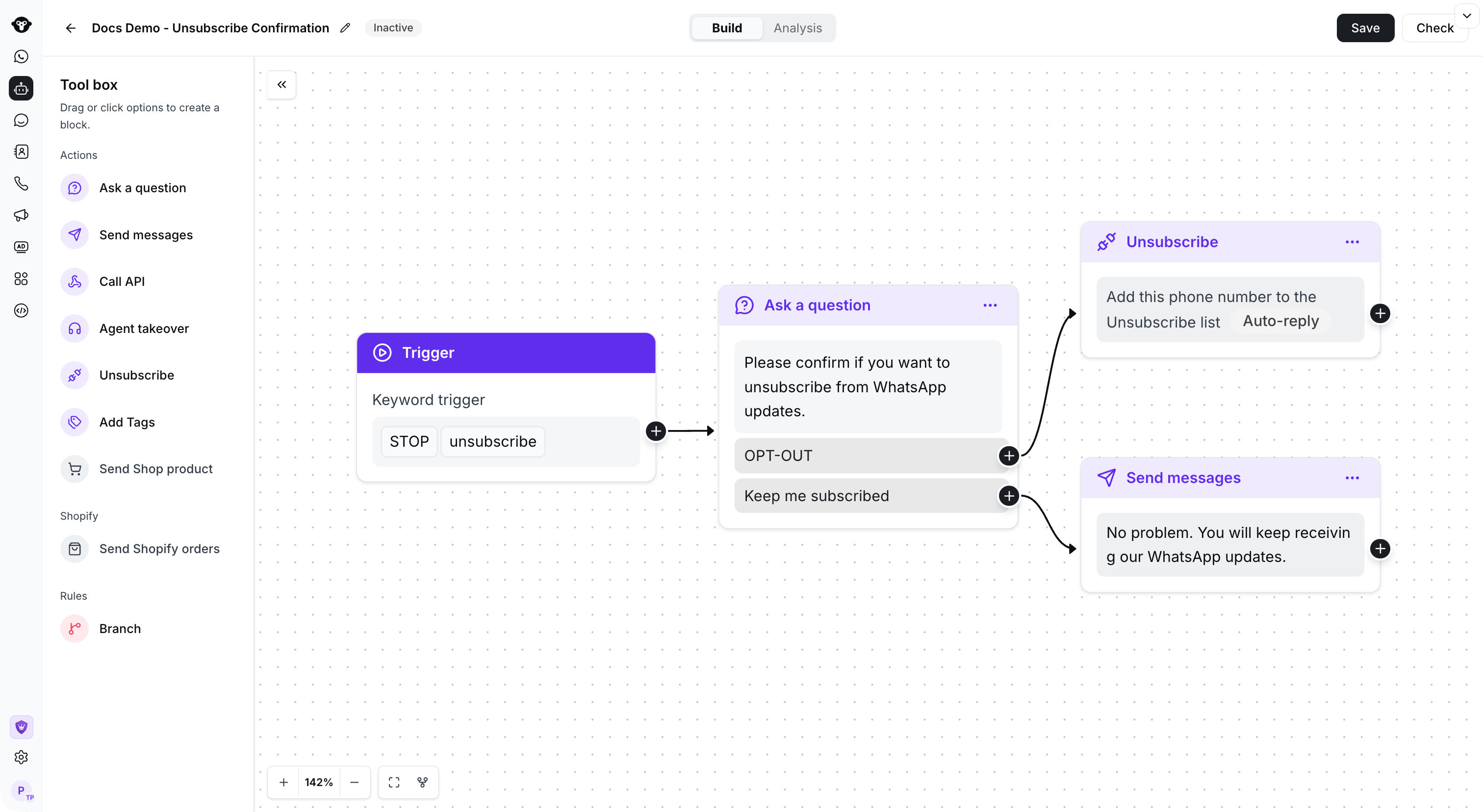
Route the opt-out reply to Unsubscribe after confirming the customer’s choice.
- Businesses can also set up keyword-triggered Rule-based Agents, configuring multiple keywords that trigger the unsubscribe Rule-based Agent. This way, even if the message received by the user does not have an unsubscribe button, the Rule-based Agent can recognize messages expressing a desire to unsubscribe and add the user to the unsubscribe list.

Use several opt-out keywords with the Containing rule.