

Message status rule
Use a Message status rule to route contacts based on whether they Read or Replied to a template message sent earlier in the same Journey. For example, you can send a follow-up message to contacts who read a template but did not reply.Before you start
Add and configure the Send template step that you want to evaluate before you add a Message status rule. You can select only a template used by a Send template component earlier in the current Journey.Configure the rule
- Add a Message status rule after a Send template step.
- Select the template message to evaluate.
- Select Read or Replied as the status to check.
- Set the waiting time. You can set a period from 1 minute to 30 days.
- Connect the follow-up steps for both outcomes.
- The matched path runs when the selected status is met during the waiting period.
- The unmatched path runs after the waiting period ends without the selected status being met.
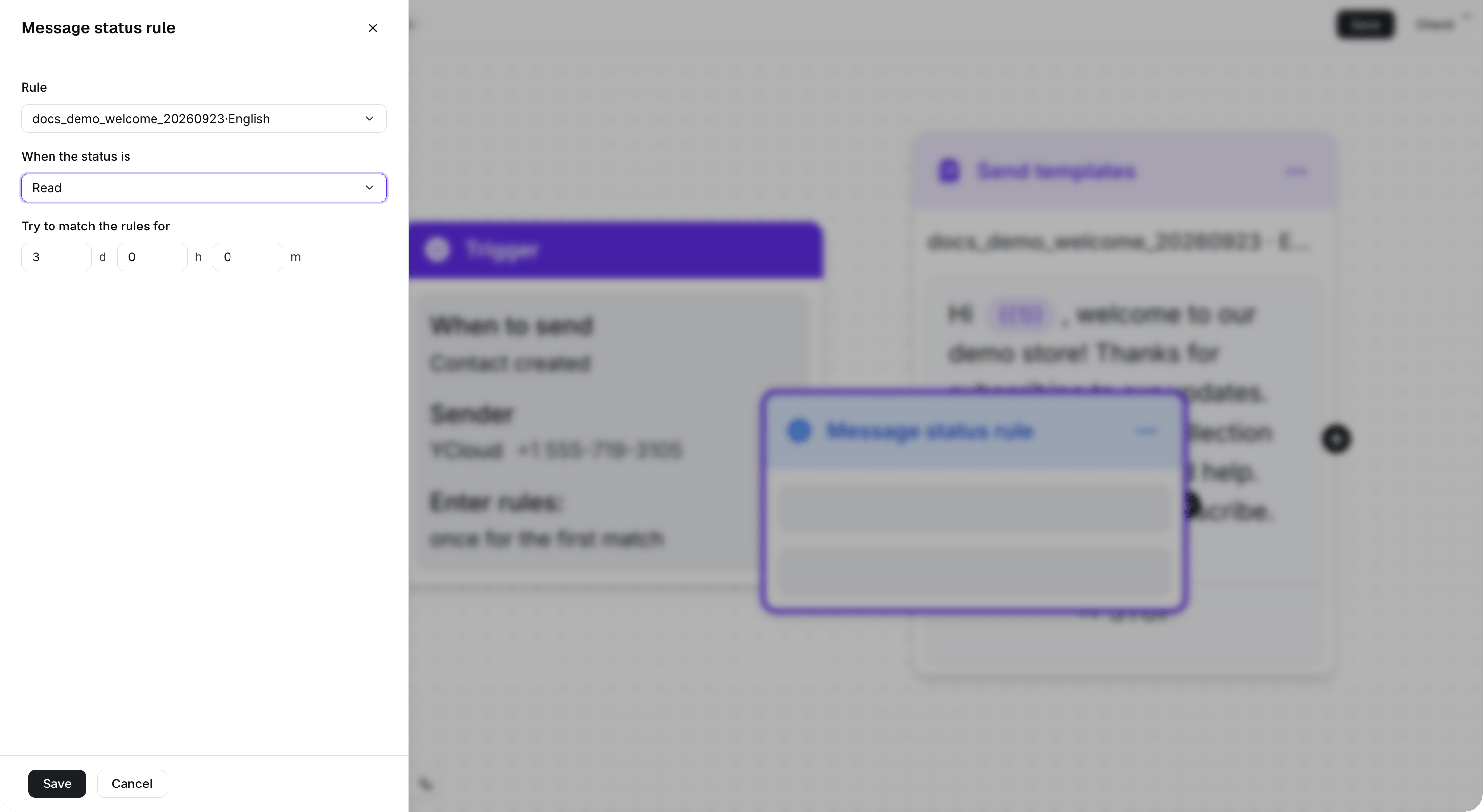
This example checks whether the selected welcome template is read within three days.
Add a rule from a Send template step
Hover over the connection point after the Send template component, then select the available option for checking whether the message was read or replied to. The Journey adds and connects a new Message status rule.
Use Read or Replied after the template node to add a connected status rule.
Add a rule manually
When you add a Message status rule manually, select the template message and status in the component settings, then connect it to the appropriate preceding and following steps.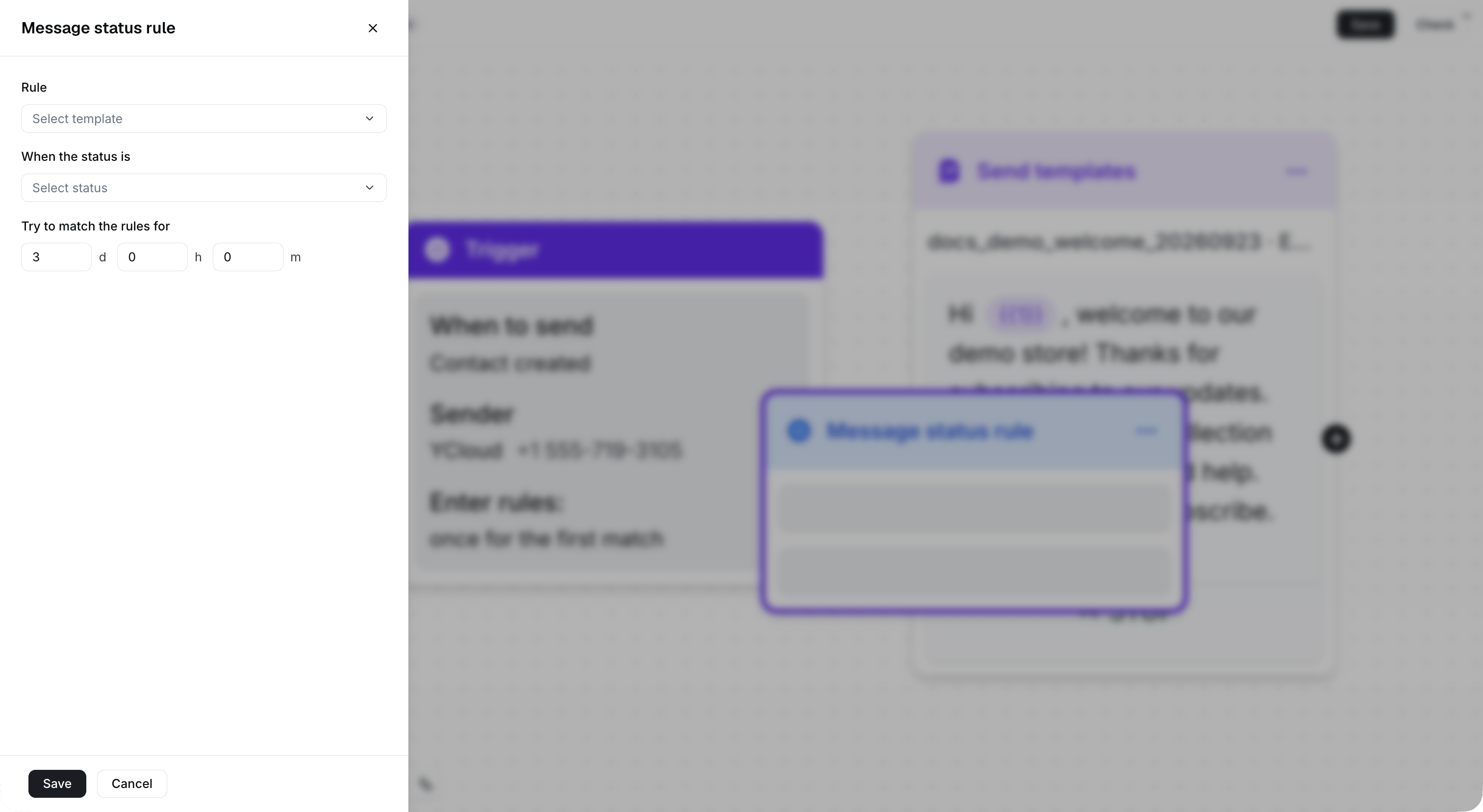
Select Message status rule from Step Tools, then configure the template and status.
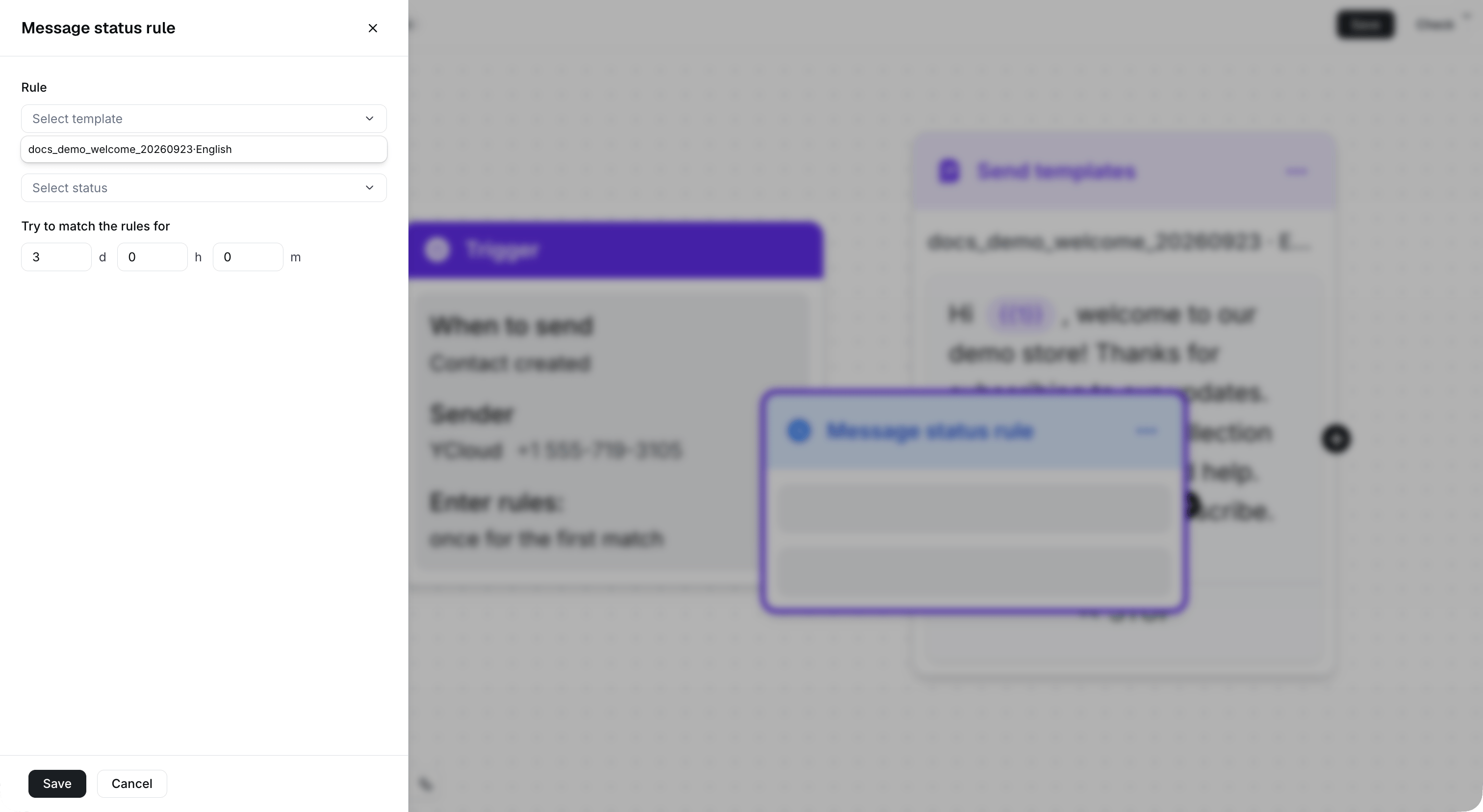
Select the template used by the preceding Send templates step.