

Choose the message format
YCloud’s messaging contract includes interactive product, multi-product, and catalog message types. These are service-message formats and require the appropriate sending window. Template-based catalog and multi-product formats provide a different entry point. They require an approved template and the relevant catalog setup. Use:- Service messages for free-form sending eligibility.
- Template components and formats for template choices.
- Catalog templates and multi-product templates for format details.
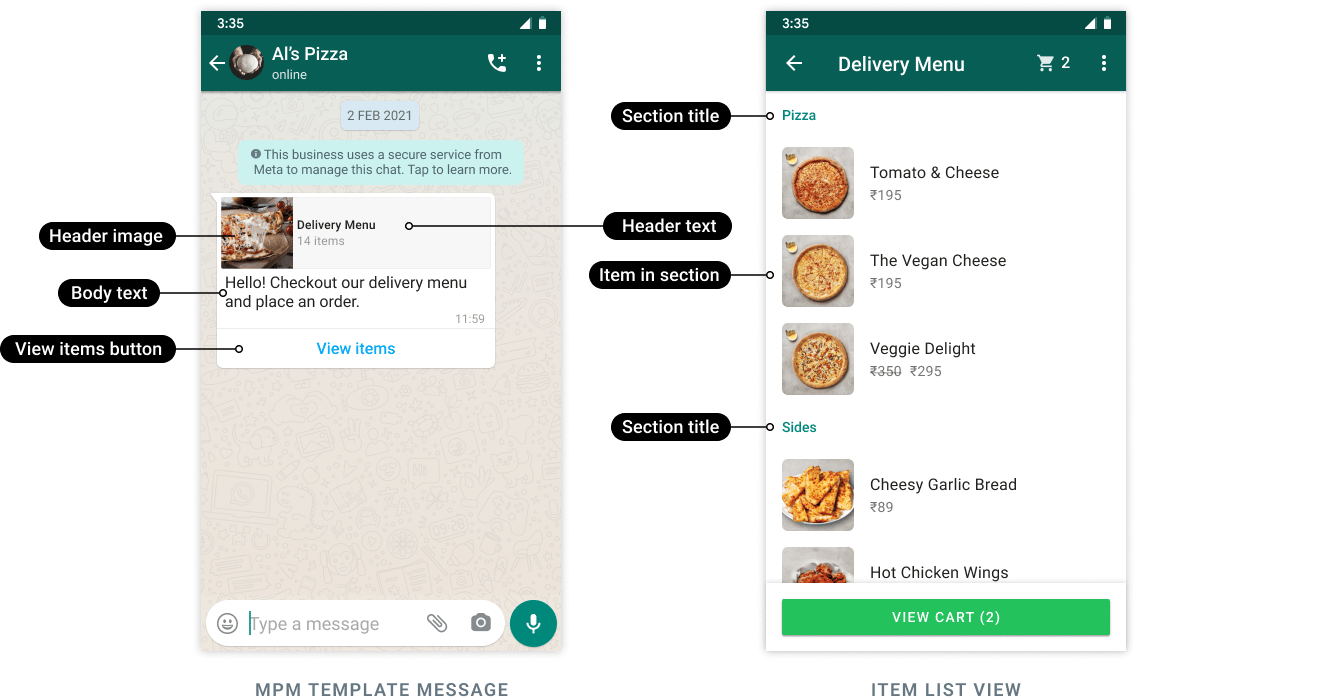
Meta example of a multi-product message opening a categorized item list. It illustrates product selection, not a completed payment. Client styling and sample prices are illustrative.
Prepare the catalog and business process
Before sending product messages:- Confirm that the intended catalog is connected to the correct business assets.
- Keep product identifiers stable and match them to your own product records.
- Maintain accurate prices, availability, images, and descriptions.
- Check product and commerce-policy eligibility.
- Decide who handles order questions, cancellations, and refunds.
- Validate submitted items against current stock and pricing.
Match product identifiers before sending
Use the product’s retailer identifier from the connected Meta catalog—not a display name, a product-page URL, or an unrelated internal database ID. For example, your store may use internal item ID8421, while the catalog uses retailer ID SKU-BAG-BLUE. Maintain an explicit mapping. A product message referencing 8421 will not find SKU-BAG-BLUE unless that is actually the identifier in the catalog.
Check the catalog ID, product retailer ID, and sender’s catalog connection together. The same product name can exist in several catalogs without making those records interchangeable.
Validate a customer order request
When a customer submits selected items:- Identify the customer and originating catalog.
- Resolve every product identifier to a current sellable item.
- Recheck quantity, stock, price, currency, delivery location, taxes, and shipping.
- Present the final payable total and applicable terms through your supported checkout.
- Confirm payment using the payment system’s result.
- Create or release the fulfillment order only at the appropriate business state.
Troubleshoot missing products
Use a small test catalog and synthetic customer data to verify the complete journey before a campaign. An approved message template does not approve every product placed in the catalog afterward.
YCloud Shop and WhatsApp Pay are separate products
YCloud Shop has its own store, product, shipping, payment, and order-management setup. Do not assume a Shop product automatically becomes a WhatsApp catalog item. WhatsApp Pay adds a supported in-app payment experience. The current YCloud guide scopes this feature to businesses and users in India with supported payment providers. Other Meta payment capabilities or markets do not automatically establish YCloud availability. Confirm the market and provider before designing an in-chat checkout.Apply policies to the entire offer
Review the product, message, catalog, and payment experience together. Permission to send a business message does not automatically permit selling the same product through commerce features. Use Business and commerce policies for the policy review path. Your business remains responsible for its sales terms, customer support, and transaction handling.Continue in YCloud
- Set up YCloud Shop
- Learn about WhatsApp Pay
- Send WhatsApp messages through the API
- Track message delivery
Frequently asked questions
The product exists in my store. Why does WhatsApp say it cannot find it?
The product exists in my store. Why does WhatsApp say it cannot find it?
Check the connected Meta catalog and the exact retailer/content ID used there. Your storefront’s internal ID or product URL may be different. Confirm the sender uses that catalog and that the item is available and approved before retrying.
A customer sent a cart. Where is the paid order?
A customer sent a cart. Where is the paid order?
A cart communicates selected items; it is not a payment result. Your order process must validate the items, calculate the total, obtain any required confirmation, and use a supported checkout. Release fulfillment based on the payment/order system’s actual status.
Does setting up YCloud Shop automatically enable WhatsApp catalog messages or in-chat payments?
Does setting up YCloud Shop automatically enable WhatsApp catalog messages or in-chat payments?
Do not assume that. Shop, the connected Meta catalog, and WhatsApp Pay have separate setup and availability. Confirm the catalog connection and supported message format; for in-chat payment, verify the market and payment-provider eligibility in the YCloud guide.